How Diary of a CEO optimizes social strategy with Spotify shareable links
February 4, 2025
Hear how creators are using Spotify shareable links to get more from their social media
Expand for key takeaways:
Sharing a link to your show page or latest episode is second nature for every creator and the simplest way for you to get the word out about your podcast. However, it’s historically been hard to know how sharing translates into more streams of your show.
No items found.
That’s why we’ve created our own shareable links in Spotify for Creators. When shared, these links direct to your show page or episode on Spotify and have built-in tracking and analytics that can not only tell you how many people have clicked your link, but also how those links have contributed to more streams of your show or any episode on Spotify.
Since launching shareable links we’ve seen excitement from many creators who for the first time are able to compare which social media channels are converting best, including shows like Diary of a CEO. Grace Miller, the show’s Head of Failure and Experimentation who has been using shareable links said:
“Ultimately, we want to drive more listeners to our show, but traditional link sharing tools can’t give us the full picture on the quality of each click to answer the most important question of how many people actually listened to the episode. The analytics provided by Spotify shareable links gives us access to this data for the first time so we can make better decisions on how to optimize our social marketing strategy.”
Let’s take a look at how you can create your own shareable links in Spotify for Creators and how you can best use them to help grow your show.
Use shareable links to optimize your social media strategy
Promoting your show on social media is an integral part of any show’s marketing and growth strategy and Spotify shareable links can help play a critical role in your promotional efforts for every new episode you drop.
With shareable links you are able to create as many custom links for your show or any episode as you’d like. We recommend creating a unique shareable link for each social media channel you plan to post your episodes on whether that’s TikTok, Linkedin, Instagram, and wherever else you have built a community. You can also insert a Spotify shareable link into any link in bio or link aggregator tools you might be using to give your audience more flexibility to listen or watch your show on their preferred platform. But remember, shareable links created in Spotify for Creators can only tell you how many incremental streams have been driven on Spotify!
Grace shares how Diary of a CEO uses shareable links to optimize their promotional strategy on social media: “Spotify shareable links play a key part of our launch strategy for new episodes. We create custom links for every episode by promotional channel so we know which one converts best. Now we have a clearer understanding of which social media channels, guests, or topics drive more listeners to our show so we can invest more into what’s working.”
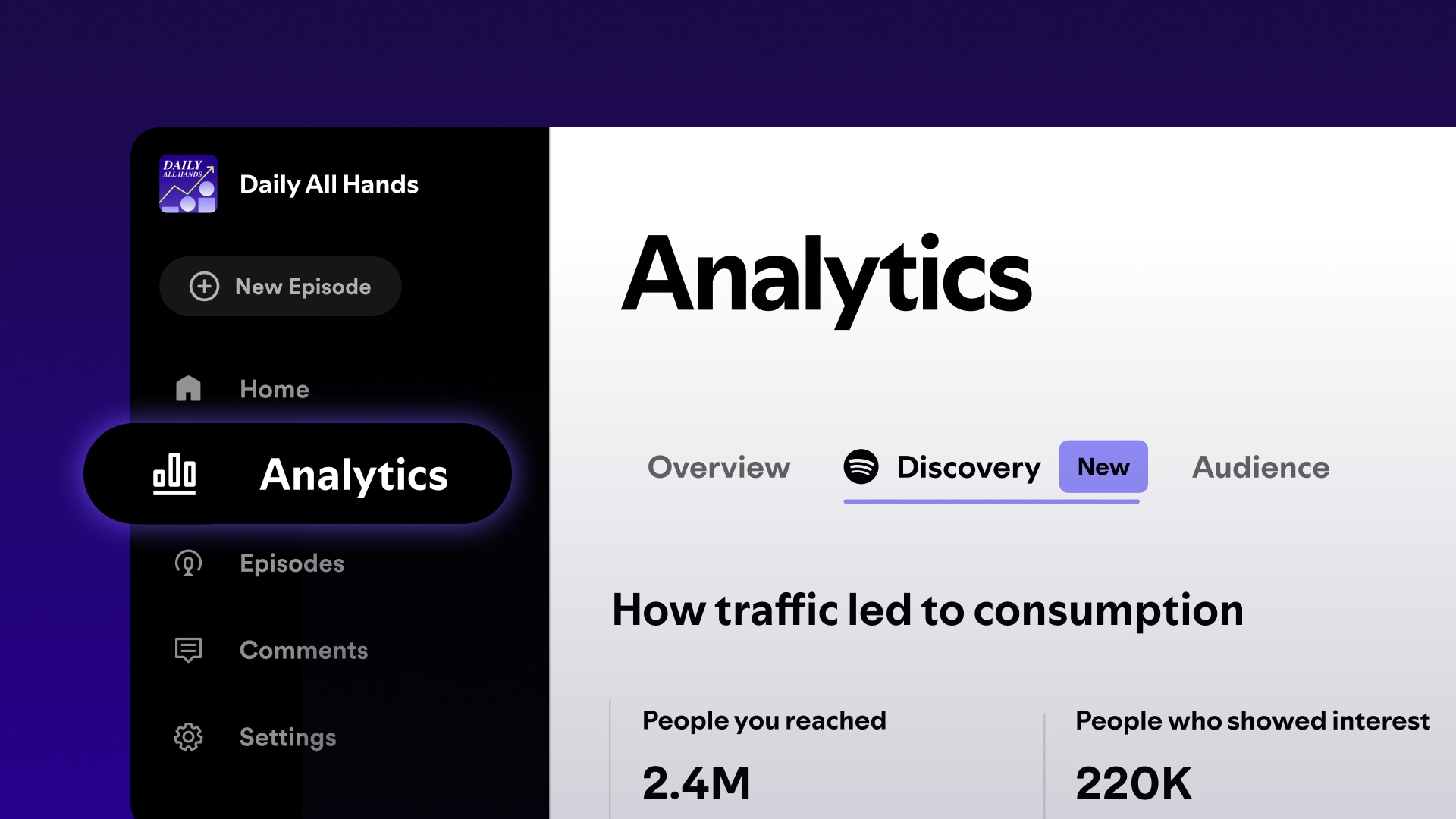
After distributing and posting your shareable links, make sure to review their performance by heading to the Discovery tab of your show or episode analytics.
There, you’ll be able to see click and attributed streams on an aggregate level across all of your links and at an individual link level. Pay particular attention to:
Overall clicks driven by your links which can tell you at a high level which social media channels drive the most awareness and interest in your content. Comparing clicks on an episode to episode basis can also start to tell you which topics or guests have driven the most interest and hooked your audience to want to learn more
The conversion rate from clicks to streams. Of those that clicked a shareable link, how many of them went on to stream your show or episode? Comparing conversion rate performance on an episode by episode level can clue you in on which guest or topics resonate most with your audience. If you customize unique links for each social media channel you post on, comparing conversion rates between each channel lets you understand the quality of your audience on each channel. Is the channel just a driver of awareness for your show or is it helping to convert more listeners of your show?
Performance over time. With consistent use of shareable links you can start to establish a benchmark and baseline for performance. While you should expect to see fluctuations in performance from episode to episode, a consistent upward or downward trend in a particular social channel can indicate when more investment is needed!
Now that we’ve shared how you can use shareable links let’s walk you through how to create them in Spotify for Creators!
Creating Spotify Shareable links
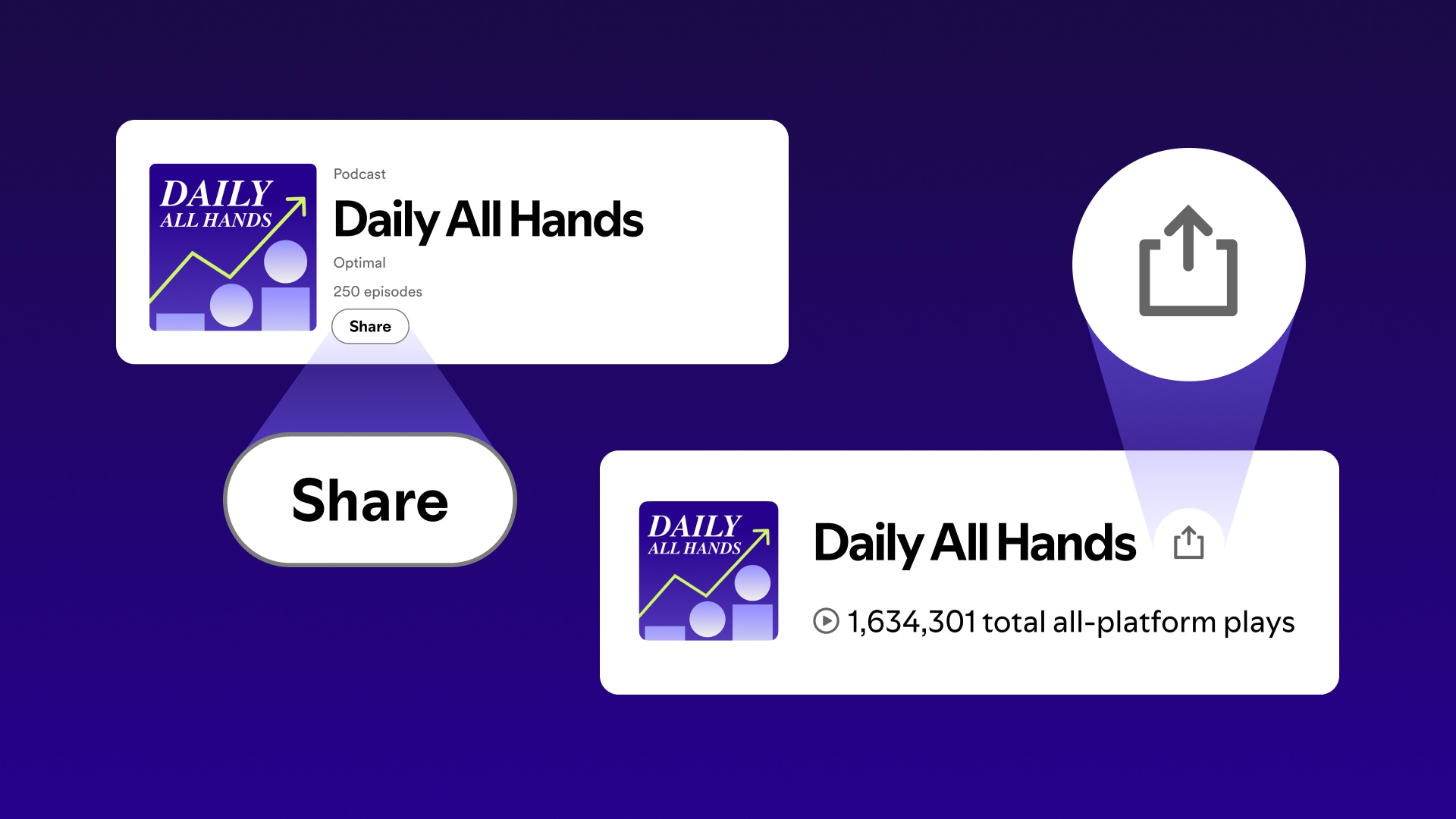
Creating a shareable link in Spotify for Creators is simple: just look for the “share” button or icon next to your show name on our main home dashboard or next to your episode title on any episode details page via our web experience (link creation via the Spotify for Creators mobile app is currently not supported)
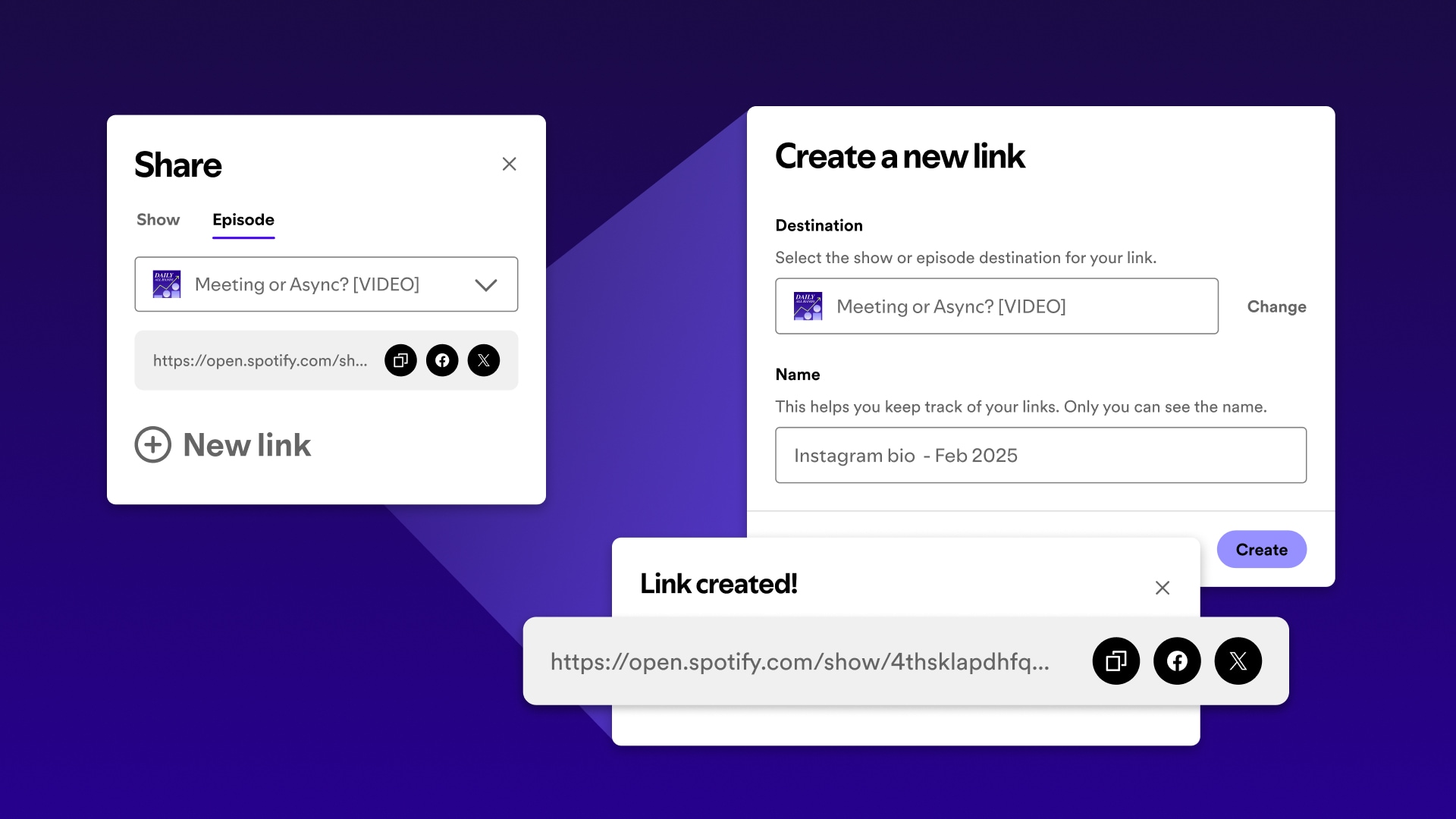
By default, we’ve already created a shareable link that you can use to share your show or any episode. However, you can customize as many links as you’d like and can create a new link by pressing the plus icon.
Just give your link a unique name and that’s it! If you are creating multiple links for a given episode we recommend that you come up with standard naming conventions to make tracking easier. For example, if you are using unique links for each social media channel you can add the specific platform and the campaign date as the link name to make it easier to track.
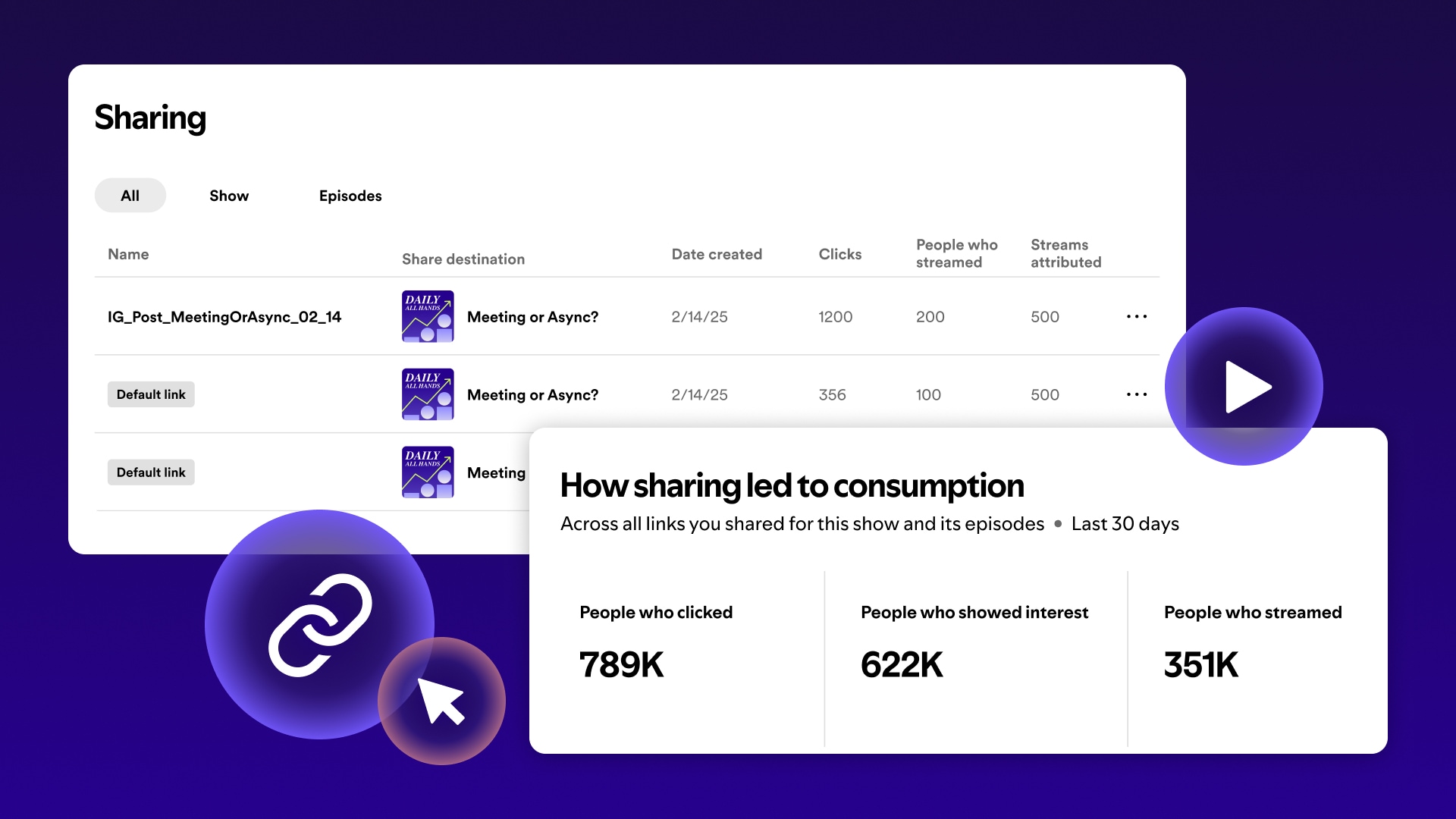
Once you’ve shared your link, you can see all of your analytics by navigating to the Discovery tab for your show or any episode. We’ll share how many clicks your links have gotten (on an aggregate and individual link level) and crucially how many people and streams can be attributed to these links.
People who streamed measures the unique number of listeners who have streamed your show or episode within 7 days of clicking your shareable link
Streams attributed will help you measure the number of streams generated from the people who streamed your content. Some people may have streamed your shared episode multiple times or in cases where you share your show page, someone may have streamed multiple episodes which can help boost the streams attributed metric.






%20(1).jpg)


.jpg)

