Explore the powerful audio and video recording and editing tools now offered through our integration with Riverside.
Expand for key takeaways:
Spotify for Podcasters is now Spotify for Creators, learn more.
Creating and editing episodes on Spotify for Creators just got an upgrade. With our latest Riverside integration, you can now easily record high-quality audio and video with your guests right inside your web browser, then clean-up your episodes with transcript-based editing. Finish your episodes and enhance your sound with easy to use Magic Tools like background noise removal, automatic pace setting, and more.
No items found.
We know having the latest and most trusted technology at your fingertips to create, edit, and distribute your podcast is important, and you can do it all easily within Spotify for Creators without ever leaving your browser window. This article will show you how.
Check out our video for some tips on how to use this integration:
Getting Access
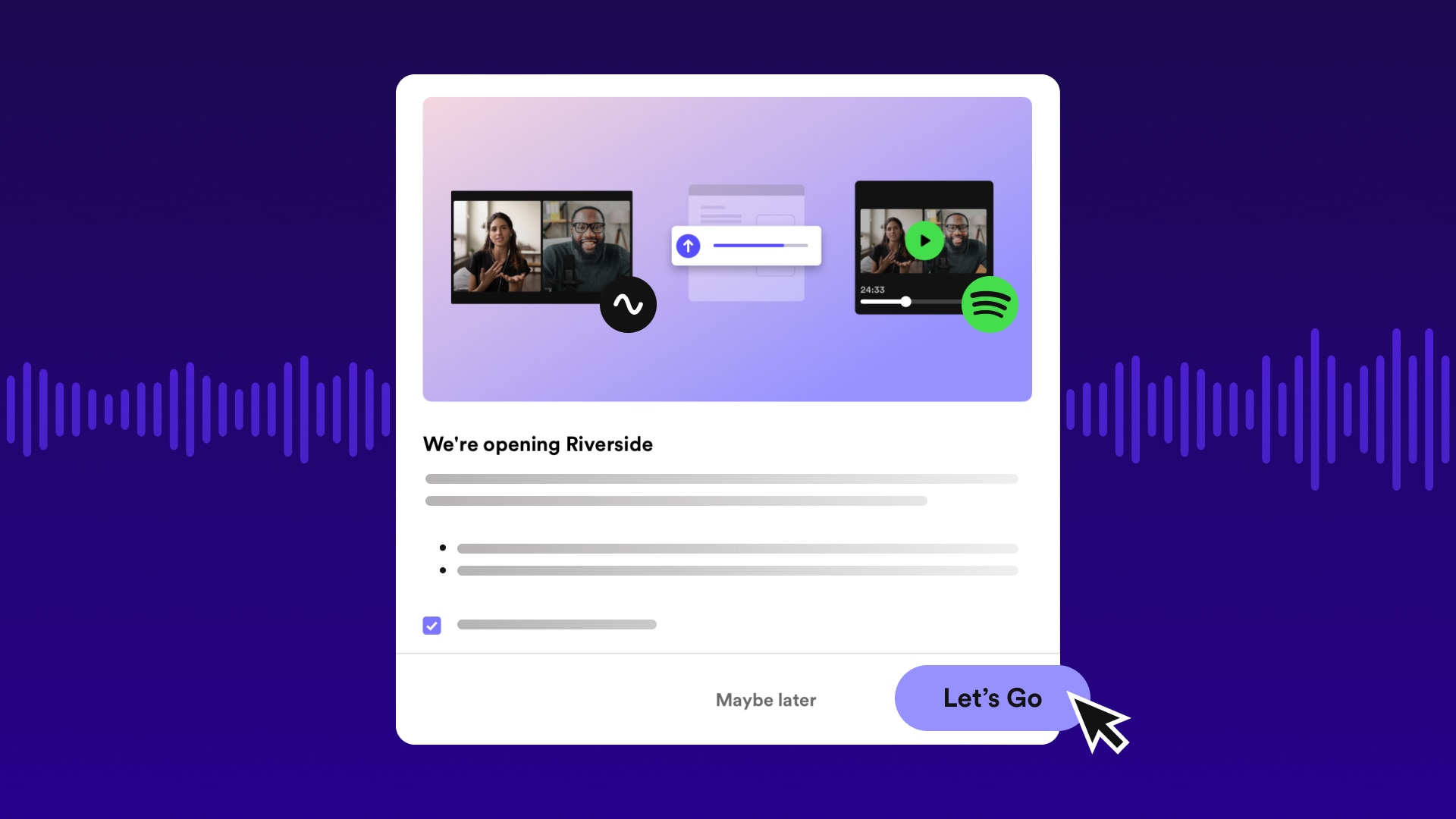
You can find the suite of Riverside tools right within https://creators.spotify.com/. Simply navigate to the “New Episode” button on the top right corner. You’ll see the option “Create with Riverside” under “Need to build an episode?”. The first time you enter the tools, you’ll see this:
Click “Let’s Go” and you’re off to create your Riverside account (you can use your Spotify login) and begin exploring features in Riverside.
Recording
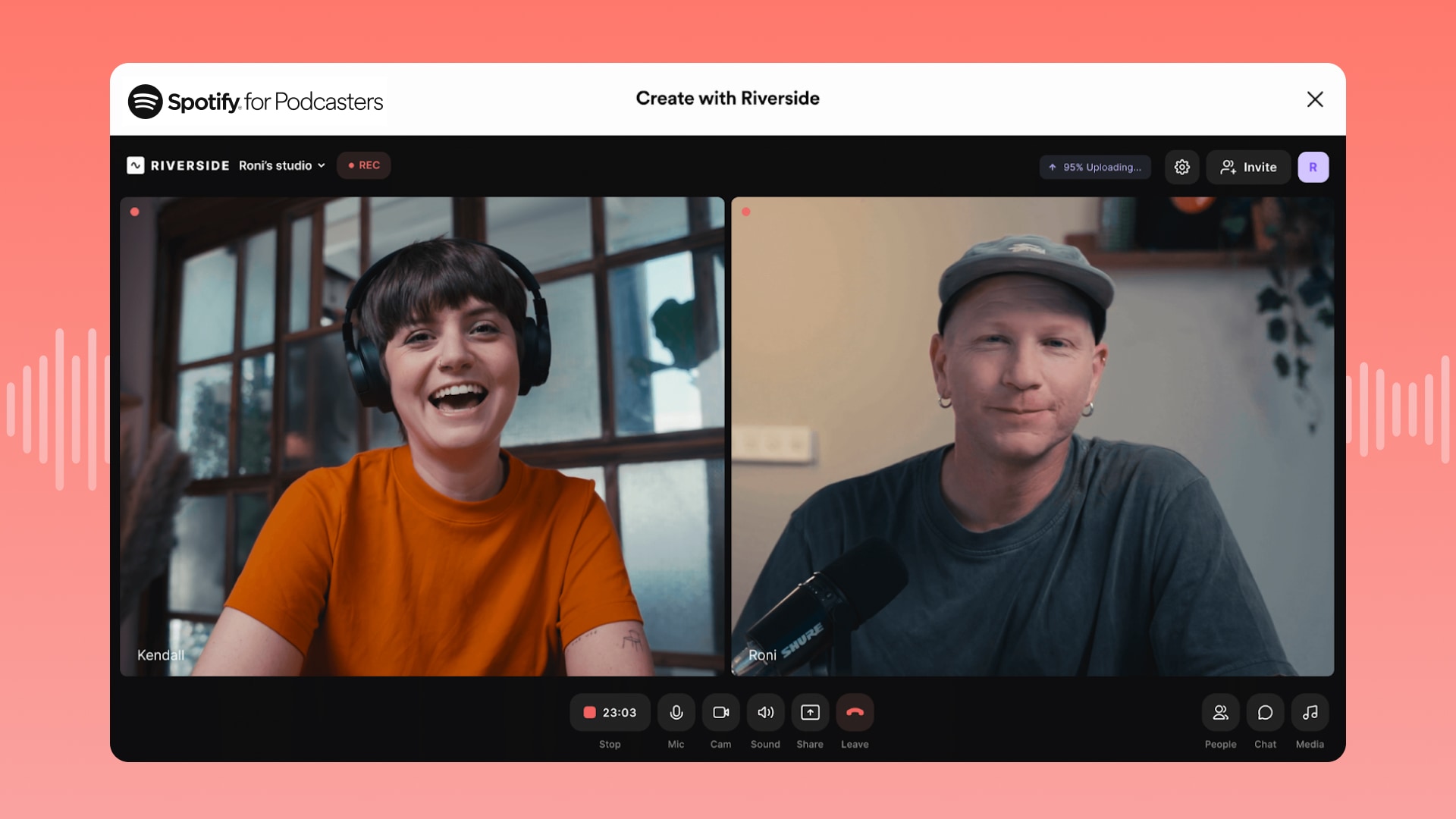
Spotify for Creators integrated Riverside Studio allows you to record high quality audio and video directly in our web experience.
Seamlessly invite friends or guests and record remotely by generating a guest link, or inviting them directly from your session. You can even create this for your team or audience members to join silently.
Add your podcast logo or artwork to design the border of your video
Use Riverside’s library of sound effects while you’re recording, or upload your own to include with the click of a button
Get pristine audio and video. Your recordings will be saved locally to the devices you and your guests join from, and then continuously uploaded to Riverside Studio. That wifi blip or badly timed freeze? It won’t show up in your files!
Editing
Once you’ve recorded, or uploaded an already recorded audio or video file, head to the Editing tool in Riverside where you’ll find a host of options that make your video or audio look and sound polished and ready for publish in no time.
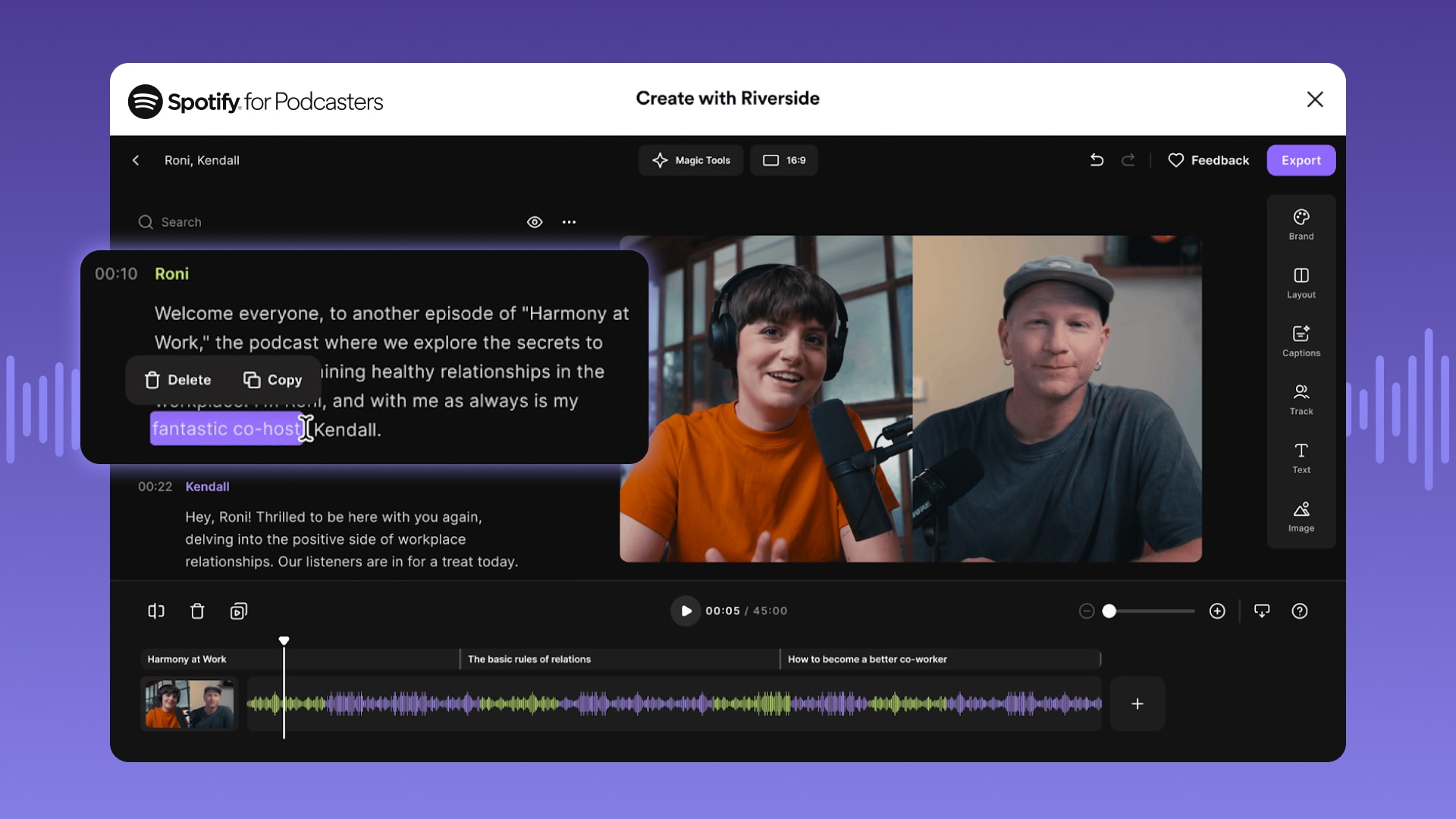
The editor shows your full recording in waveform, and with a full AI-powered transcript on the left. You and your guests will automatically be color coded in both views.
Text based editing within the transcripts, available in 100 languages - edit out words, phrases, or fumbles right in the transcript and they’ll be magically removed from your audio with seamless transitions. You can even move words around or reorder sections without touching the waveform.
With Riversides Magic Tools feature Set Pace - you can remove pauses automatically and improve the conversation flow. It will even let you know how many moments of silence you’ve adjusted, and how many seconds you’ve shaved off your episode.
With Magic Tools, you can also remove background noise and enhance the sound of your audio with a touch of a button.
Video Editing
Our Riverside integration also provides really simple and powerful video editing tools! Beyond the dynamic editing features above, you’ll additionally find options to:
Change the layout of the screen recording for your video - define your own look and feel for your video podcast.
Customize the look by adding your own podcast artwork and branding.
Add captions, or other text and labels - and customize how it appears on screen.
Include media clips from Riverside’s library, or insert other recordings or segments of your own right in the editing tool.
When you’re done creating and editing with Riverside hit “Export” where you’ll see options for exporting to Spotify for Creators as video or audio only.
Your episode will automatically appear in your S4P account, ready for you to add your title, description, and then publish as usual. Then just wait for the audience engagement and monetization opportunities to begin!
Have you created an episode with S4P and Riverside and want to share it with you fans? Download our Riverside x Spotify for Creators asset kit here to add badges to your video podcast or social.
If you're looking for more details, check out the step by step guide on how to use our integration on Riverside's site.